PowerShell: Pause for specific key strokes

Today I needed to add a wait into a Powershell script, given that is a point where the user running the script needs to go do some manual steps on another server I thought it might be a good idea to wait for a specific key press. So off to Bing I go…

There are plenty of great articles on waiting for or getting user input, personally I really like Windows PowerShell Tip of the Week: Pausing a Script Until the User Presses a Key and the User Interaction chapter from the PowerShell Cookbook. After seeing that [Console]::ReadKey() would give me an object which told me about the modifers on the key press (Crtl, Alt and/or Shift) I started thinking about making that key press more specific, say Ctrl + G, so I wrote a function to handle this:

function Pause
{
	param([string] $pauseKey,
			[ConsoleModifiers] $modifier,
			[string] $prompt,
			[bool] $hideKeysStrokes)
			
    Write-Host -NoNewLine "Press $prompt to continue . . . "
    do
	{
		$key = [Console]::ReadKey($hideKeysStrokes)
	} 
	while(($key.Key -ne $pauseKey) -or ($key.Modifiers -ne $modifer))	
	
    Write-Host
}

This function received a bit of inspiration from How to Properly Pause a PowerShell Script which itself is pretty interesting.

Things to note:

Ctrl + C will still cancel the script, you’ll need to use $host.UI.RawUI.ReadKey with the AllowCtrlC option to prevent that, but then accessing the Modifiers is done differently.

$modifers is a simple enum value of ConsoleModifiers if you want to do combinations like Atl+Shift you’ll pass a collection of modifers and do –band operations to see if your conditions are met.

To call the Pause function use something like this:

$modifer = [ConsoleModifiers]::Control
Pause "G" $modifer "Ctrl + G" $true  

And then you’ll see this: image

Posted in Uncategorized | Leave a comment

I’m an MVP for SharePoint Server!

Wahooo!

A couple of weeks ago I got one of the coolest emails I’ve received in my professional career, it read:

Dear Gavin Barron,
Congratulations! We are pleased to present you with the 2012 Microsoft® MVP Award! This award is given to exceptional technical community leaders who actively share their high quality, real world expertise with others. We appreciate your outstanding contributions in SharePoint Server technical communities during the past year.

I’m really happy receive this honour! I’d really like to thank everyone at Intergen for the support they’ve provided over the years and for an environment where community involvement is encouraged. I’d like to personally call out Chris, Chan, Debbie, OJ and Brendan for their personal support and help since I first got involved with this crazy SharePoint thing.

It’s been a heck of a ride so far and with the public preview of Office 2013 announced this morning I’m looking forward to the next few months.

-Gavin

Posted in Personal, SharePoint | Leave a comment

Whitespace: Silent Killer!

Today I went hunting in an XML file for an erroneous double space I knew was there. 

Space_horror

I was horrified to see all those extra spaces there!!! Now this Visual Studio 2010 instance is just running the default setup with the productivity tools installed (Oh and I hit Ctrl+R, Ctrl+W to show the whitespace characters used)

FileSize_With_Spaces

That’s an 81KB XML file!

Now I’m a believer in tabs over spaces and full tab sized indents in all cases, to me it’s cleaner and reduces page weight.

So, open up Visual Studios options, Tools > Options and go to Text Editor > All Languages > Tabs. For me this is what I found….

Original_Tab_Settings

Settings that were not consistent across all the file types and Spaces used as indents! Grrrr!!!!! So, a quick change of settings:

New_Tab_settings

A quick Ctrl+A, Ctrl+K, Ctrl+F to re-format the file and things looks much tidier:

Tabs_Not_Spaces

The file size came down to 80KB, so about a 1.25% savings, not a huge amount, but if you think about that over all of the code sitting in source control for a development company like ours that’s likely to be gigabytes worth of savings. Plus the double space in the file stood out nice and clearly!

Now that the preferences for VS are ‘fixed’ all of the files will get the ugly space based whitespace removed as they get worked on.

-Gavin

Posted in Deployment, Visual Studio | 4 Comments

Document Set Limitations and Considerations in SharePoint 2010

First of all, go and read the excellent article Document Set Limitations and Considerations in SharePoint 2010 written by Michal Pisarek.

Ok, you’re back and have read all those? Great! I’ve got a few more for you.

  1. Shared Fields are push down only:

    If you go into a document within a document and edit a property which is set as a shared property for the Document Set that change does not get propagated to the either the containing Document Set or to other documents within the set. If you need to change these across the entire Document Set you must make the change to the Document Set itself and then SharePoint will propagate these changes down.

  2. Versions have to be declared:

    Despite the fact that a Document Set itself can have metadata which users change there is no automatic tracking of changes made. You must use the Capture Version functionality manually to record changes made against the metadata at a Document Set level.

  3. No Check-In/Check-Out functionality:

    The notion of check-in/check-out does not apply to Document Sets. This kind of makes sense when you consider that they are just special folders and a check-out at the folder level would imply that they user had also checked out all child documents. But it’s a little annoying, especially as there is metadata against the Document Set which users can freely edit with no automatic version history captured.

Posted in Caveats, Document Sets, SharePoint | 4 Comments

VS 2010: Missing Source Control Icons

So I’m working on a project with a number of other developers at present. However every so often when another developer adds files to source control when they are added to my local solution they appear unbound to source control and Visual Studio treats them as though they are not bound to TFS.

Missing_Bindings

Note the missing padlock icons on some files. The files missing the padlock were retrieved on my last Get Latest operation.

To ensure that Visual Studio treats these correctly and enforces source control behaviour you have to refresh the source control connection. Ensure that you select the solution file, to refresh all projects, or just a single project to target the refresh at just that project. Then select File > Source Control > Refresh Status or Alt + F, Alt + R, Alt + T for you keyboard jockeys out there.

Refresh_Status

Lo and behold, padlocks are present and source control behaviour is correct!

Bindings_Present

Posted in Development, TFS, Visual Studio | Tagged , | Leave a comment

Create a Document Set in Code

I have a solution where we need to create custom Documents Set via code, luckily there are some good samples out there. However I ran into a strange piece of behaviour. My Document Sets were appearing as folders without Welcome Pages….

docsetpopoutmenu

I’d been using this code to create my document sets:

/*
Broken but sort of works
*/
public static void GenerateNewApplicationDocumentSet(string applicationNumber, SPList targetLibrary, SPWeb web)
{
	if (applicationNumber == null) throw new ArgumentNullException("applicationNumber");
	if (targetLibrary == null) throw new ArgumentNullException("targetLibrary");
	if (web == null) throw new ArgumentNullException("web");
	//You can use a hashtable to populate properties of the document set
	var docsetProperties = new Hashtable {{"Name", applicationNumber}};
	var documentSetContentType = web.ContentTypes[ContentTypeNames.ApplicationDocumentSet];
	documentSet = DocumentSet.Create(targetLibrary.RootFolder,
                                                    	applicationNumber,
                                                    	documentSetContentType.Id,
                                                    	docsetProperties,
                                                    	true);
}

Creating my Document Sets via the UI worked fine and gave me the right icon and a link to my Welcome Page. I was well puzzled. After a bit of head scratching and getting back to SharePoint basics I realised my mistake. I was creating an instance of the Documents Set Content Type that was on the SPWeb and not that which was bound to the Document Library.

Once I start using the content type from the library things started working perfectly!

public static void GenerateNewApplicationDocumentSet(string applicationNumber, SPList targetLibrary)
{
	if (applicationNumber == null) throw new ArgumentNullException("applicationNumber");
	if (targetLibrary == null) throw new ArgumentNullException("targetLibrary");
	//You can use a hashtable to populate properties of the document set
	var docsetProperties = new Hashtable {{"Name", applicationNumber}};
	var documentSetContentType = targetLibrary.ContentTypes[ContentTypeNames.ApplicationDocumentSet];
	documentSet = DocumentSet.Create(targetLibrary.RootFolder,
                                                    	applicationNumber,
                                                    	documentSetContentType.Id,
                                                    	docsetProperties,
                                                    	true);
}

docsets

Subtle but telling reminder that the content types bound to lists are different from those site wide content types that they inherit from.

Posted in Development, Document Sets, SharePoint | 2 Comments

SharePoint Search: Custom Managed Property Woes

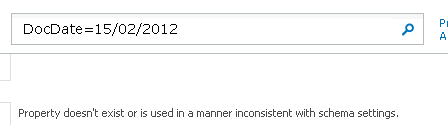
So I was working on some custom search interfaces that my team had built and was getting the infamous “Property doesn’t exist or is used in a manner inconsistent with schema settings”.

Now usually this means that you’re trying to use a managed property without mapping it to a crawled property or before doing a full crawl after creating the managed property. Neither of these were the case for me.

In my case I was trying to search on a DateTime field, which I’d set up as a Managed Property called DocDate, and I’d decided to base the format of the search term off what SharePoint creates from the advanced search screen which is “Write>=02/03/2012”.

When I was looking for a known document in my corpus which should have a DocDate of 15/02/2012 using the search term “DocDate=15/02/25012” I was presented a familiar message, however I knew I’d wired up the Managed Property correctly.

Infamous_Error

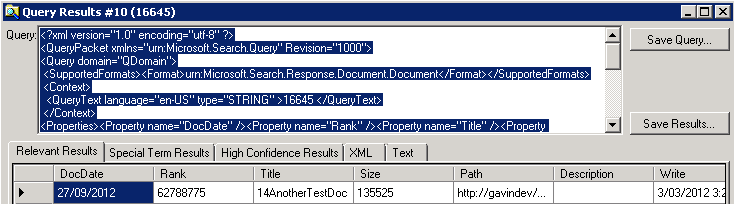
So I downloaded the SharePoint Search Service Tool and tested another search to verify that my DocDate property was populated and getting returned, sure enough, it’s coming back in search results.

Managed_Property_Returned

After a bit of head scratching and cursing I hit upon the problem.

1033.

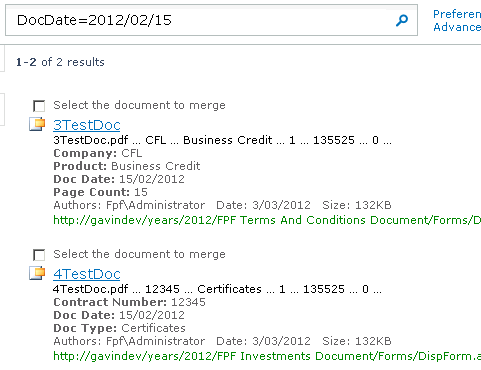
I was getting bitten by the fact that the only “English” installation of SharePoint anybody can use is actually American, and their horribly broken date format is used by the query engine despite the fact that the Search Centre site has the locale set to en-NZ. A quick change of query to use ISO date formatting and BOOM! I’ve got results!

Search_With_Results

In short, SharePoint will give you the “Property doesn’t exist or is used in a manner inconsistent with schema settings” error message when it couldn’t parse a Date.

Posted in Configuration, Development, Search | 4 Comments

Data import and ‘old’ dates

Running a data importing tool my team had developed I ran into this little gem: “Unhandled Exception: Microsoft.SharePoint.SPInvalidPropertyException: Date Times before 1/1/1970 are not supported”.

What the hell? I’ve entered dates prior to 1970 via the UI before. A quick search showed me this great post: Proper way to set DateTime format of a Sharepoint list item datetime property. Perfect.

I have one small addition to make to that. You can use the DateTime format string of “s” for ‘sortable’ date times.

fileToUpload.Properties["DateField"] = date.ToString("s");
Posted in Development, SharePoint | Leave a comment

It’s been a while…..

Yeah, I’ve been neglecting my blog. My last post was waaaaay back in October, while I was attending the SharePoint Conference in Anaheim. I thoroughly enjoyed my time at the conference. However I didn’t follow through on a couple of blog posts I’d planned and some CSS/HTML resources I was going to post as a follow up to the session I co-presented.

Sorry.

In all honestly when I got back from the US after that trip I was a bit burnt out. Pulling large hours for an extended period of time just caught up with me. I really love the work I got to do over that time, building a keynote demo for the SharePoint Conference was an amazing experience! But it’s nice to slow down a little and enjoy life too.

So I took a bit of a break from the long hours to spend more time with my wonderful fiancée and spent some time getting out hiking the Waiatakere ranges. Well I’m glad to say that I’m starting to blog again, this is the first of three posts that will go out today.

I’m going to TRY to keep up  a cadence of a post per week, but I do throw out the caveat that I am getting married in September so I’ll likely go dark for a few weeks around that.

I’m really excited about lots of cool things things that are happening this year, the first, and second, of these being the Australian and New Zealand SharePoint Conferences where I’ll be presenting on using LiveID and Claims based authentication. Even if my topic isn’t your bag they’ll be a great pair of events industry leading experts, MVPs and two MCMs presenting. So I strongly urge you to hit up your boss and get yourself to Melbourne for March 20&21 or Auckland for March 28&29.

Anyway, it’s good to be back.

Posted in General, Personal | 2 Comments

SPC366 Making SharePoint Websites Sing on your Smartphone

Well that was fun!

I had a real blast co-presesnting that session with Chris. As promised I have a bunch of resources for you to download and peruse.

Disabling Mobile Re-direction via PowerShell

Hmmm, apparently WordPress won’t let me host any useful file formats in my site (not even plain .txt files!!!) so sorry…. My plans of giving you folks full Visual Studio solutions as zip files has been foiled! I’ll work out a cunning plan to get around this later.

In the meantime:

The custom re-director I showed off was based off this MSDN article: http://msdn.microsoft.com/en-us/library/ms441925.aspx. Essentially you should:

  • Create a mapped folder in you SharePoint Solution, mapping it to 14HIVE\TEMPLATE\LAYOUTS\MOBILE
  • Into this add your own custom aspx page that inherits from Microsoft.SharePoint.MobileRedirection.SPMobilePage
  • Override the OnInit method to provide your custom redirection
  • Create a copy of the existing mbllists.aspx as mbllists.old.aspx, or similar
  • Replace the existing mbllists.aspx with your own custom page that contains:
  • <SPMobile:SPMobileForm RunAt="Server" PageType="HomePage" Paginate="true">
    	<SPMobile:SPMobileHomePageRedirection ID="SPMobileHomePageRedirection1" RunAt="Server" 
        PageFileName="CustomMobileRedirect.aspx" />
    </SPMobile:SPMobileForm>
    
  • Deploy the solution

The HttpHandler that I used to trick SharePoint into not re-directing I sourced from the blog of Waldek Mastykarz: http://blog.mastykarz.nl/inconvenient-sharepoint-2010-mobile-redirect/.

I then coupled it with a really simple webpart that contained the following code.

using System;
using System.ComponentModel;
using System.Web.UI.WebControls.WebParts;

namespace VariationsRedirector.RedirectWebPart
{
    [ToolboxItemAttribute(false)]
    public class RedirectWebPart : WebPart
    {
        protected override void OnInit(EventArgs e)
        {
            if (Page.Request.Browser.IsMobileDevice)
            {
                string mobileUrl = GetMobileSiteUrl();
                Page.Response.Redirect(mobileUrl);
            }
            base.OnInit(e);
        }

        /// <summary>
        /// Gets the Mobile URL form the config settings list if it exists
        /// </summary>
        /// <returns>The mobile URL</returns>
        private string GetMobileSiteUrl()
        {
            //This is just hard coded to change the URL of the current request,
            //swaping the mobile variation label for the www variation label, 
            //hey, it's demo code...
            string mobileUrl = Page.Request.Url.ToString().ToLower().Replace("/www/", "/mobile/");
            return mobileUrl;
        }
    }
}

Many thanks to the Conference team for allowing me to present and to all of you that came along to my session
Feel free to reach out to either Chris of myself if you have any further queries 🙂

Posted in Uncategorized | 1 Comment